

With version 0.82 The Caller's Caddy will receive a new feedback feature.
And that solves a problem that many large music collections have:
The data actually needs to be maintained.
But this very task quickly feels enormous.
Enter quality information.
Assess ERR.
Add notes.
Check songs.
Correct values.
If you have a lot of songs, it can keep you busy for a long time.
And then the obvious often happens:
You don't even start.
That's understandable.
But it's also a shame.
Because it is precisely this data that later makes many automatic recommendations in the Planner and Evening Planner significantly more valuable.
Which songs do you know for sure?
Which songs elicit strong reactions from the dancers?
Which songs are more mellow?
Which songs are a good fit for a particular evening?
The caller's caddy can help you with that.
But for that, he needs usable data.
The good news is:
You don't have to enter everything perfectly at once.
With the new feedback feature, you can gradually improve your data.
Check briefly after each song
The caller's caddy may ask you after a song has been played if you would like to make any changes.
Then a small feedback dialog appears.
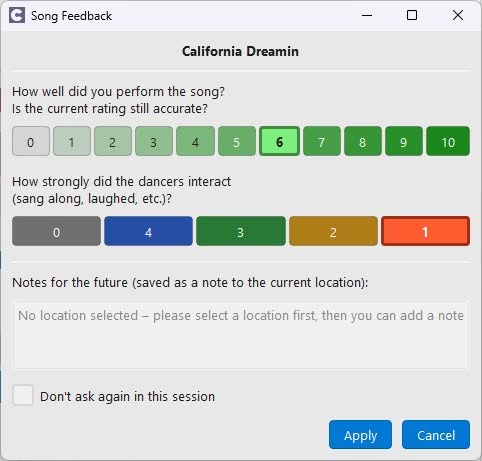
There you can see the current values of the song.
And you can change them directly if they no longer fit.
You can Quality adjust.
You can the ERR adjust.
And you can enter a note for the current location.
If everything looks good, you simply close the dialog again.
So you don't need to prepare all the songs perfectly beforehand.
You improve your data in real-world use.
Song by song.
Night after night.
Quality: How well do you know the song?
Quality describes how familiar you are with a song.
It's not about whether a song is objectively good or bad.
This song is about your safety.
Do you know the procedure?
Do you know the breaks?
Do you know where you need to be careful?
Can you call the song without any stress?
Or do you need more practice with it?
In the feedback dialog, you can rate the quality of 0 to 10 set.
0 means: not yet rated.
10 means: very familiar and very safe.
The currently stored value is highlighted.
This way you can immediately see how the song is currently rated.
ERR: How strongly do the dancers react?
ERR stands for Emotional Response Rate.
I first heard this term from Wade Driver heard.
He explained that he also plans his sessions in a kind of curve shape.
So not simple:
Song.
Song.
Song.
But with a sense of energy, reaction, and progress.
When should the evening start to be quiet?
When is it permissible to increase energy consumption?
When does the group need a strong song?
When is a relaxed moment better?
There's also a separate blog post about this.
In Callers Caddy, the ERR value describes how strongly the dancers react to a song.
Do you know the song?
Are they singing along?
Are they smiling?
Is there a noticeable energy flowing into the square?
Or will the reaction remain rather weak?
The ERR is particularly interesting because it is not the same everywhere.
A song can be a real hit in a club.
In another club, perhaps almost nothing happens.
That's why it makes so much sense to check the value immediately after playback.
You just witnessed the reaction.
You don't have to guess.
You can immediately improve the value a little.
Why this is better than a big data marathon
Of course, you could sit down and rate all the songs at once.
But that takes time.
And it quickly becomes inaccurate.
With many songs, you might not even remember exactly how they were received the last time they were used.
The new feedback feature takes the pressure off.
You can start with rough initial values.
For example:
You set all quality values to 6 for now.
Or you could have the ERR values roughly estimated by an AI.
These values are of course not perfect yet.
They are not yet truly tailored to you, your clubs, and your dancers.
But they are good enough to start with.
And after that, they will gradually improve.
Every song you play gives you a small opportunity to improve your data.
Notes for the next location
The feedback dialog also includes a field for notes.
These notes don't necessarily have to be related to the song.
This is important.
You can also jot down anything you want to remember for the next evening at this club.
For example:
„"Peter had difficulties with Cast Off 3/4 – next time, a short re-teaching session is needed."“
Or:
„"The group was uncertain at Circulate today."“
Or:
„"Start more slowly next time."“
Or:
„"Schedule more repetitions for the new dancers."“
Once a location is selected, the caller's caddy attaches this note to the current location.
This way, the memory will reappear where you need it next time.
Not just anywhere in a general list.
But directly at this club.
This makes the notes particularly valuable.
You immediately capture your perception.
And the caller's caddy will remind you of that later.
Here's how to activate the feedback feature
The feedback feature is turned off by default.
So you decide for yourself whether you want to use it.
You can activate it in the file:
callers_caddy.ini
There you set in the area [feedback] the entry:
[feedback]
enabled=true
After that, the Callers Caddy can display the feedback dialog after a song.
Or you can go to the general settings. There you can also turn the feedback function on/off.
The dialogue can appear after a natural song ending.
It can also appear after a fade-out.
And it can appear after a manual stop.
If you don't want to save anything, click Cancel or press Esc.
Then nothing will change.
If you change only one value, only that value will be saved.
Open feedback manually as well
You don't have to wait until a song ends.
You can also open the feedback dialog manually.
There is a new button for this in the song data dock:
Feedback
He sits next to Extended Data and Delete song.
This is useful if you notice something while preparing.
Or if you're currently testing a song and would like to add your assessment directly.
Hang out the "Do Not Disturb" sign
You generally want to be asked for feedback, but not today?
Then, in the feedback window, you can activate the "Don't remind me again in this session" switch. It will then do exactly what it says and won't ask you for feedback again in this session.
However, the next time the app is started, it uses the default settings again.
The planner benefits from better data.
The goal is not to maintain data for the sake of data.
The goal is a better planner.
When Quality and ERR are well-maintained, the caller's caddy can make better suggestions.
He can distinguish better:
Which songs are safe for you?
Which songs bring energy?
Which songs are more mellow?
Which songs should you perhaps not use yet?
Which songs are a good fit for the mood of an evening?
The better the data becomes, the more helpful the recommendations will be.
And that's exactly why the feedback feature is so valuable.
It makes data maintenance easy enough that you actually do it.
Helpful for getting started: the potential window
For getting started, there are also useful tools in the Potential window.
There you will find help to initially populate Quality and ERR.
This is practical if you don't want to start from scratch.
The easy way is:
First, set rough starting values.
Then refine it in real-life caller situations.
This gradually creates a song database that truly suits you.
Small question, big impact
The new feedback feature basically asks you just one simple question:
„"Is there anything you'd like to record after this song?"“
That's all there is to it.
But this small question can change a lot.
You don't have to rate your songs in a huge effort.
You don't have to know everything perfectly.
You don't have to spend hours maintaining data before you can use Planner effectively.
You just get started.
And every genuine experience on the dance floor makes your data a little bit better.
Try it now
The feedback feature is available from version 0.82 Available in the Callers Caddy.
Activate it in the callers_caddy.ini with:
[feedback]
enabled=true
Or even simpler, in the general settings.
Then play a few songs as usual.
After the song, you can check whether the Quality or ERR should be adjusted.
And if you notice anything for the next evening at this club, you write a note about it right away.
This way, your song database doesn't just grow at your desk.
It grows where it learns the most:
in real Callen.