

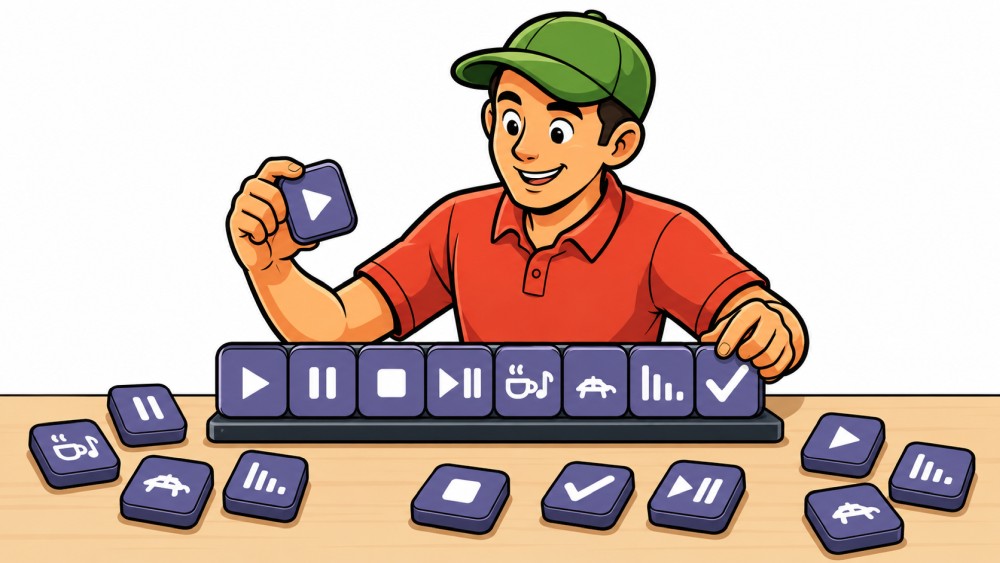
A physical Stream Deck It consists of freely assignable buttons: You decide which function is hidden behind a button and which symbol is displayed on it.
This exact idea is now also present in Callers Caddy.
With the new Stream Deck widget, you can place your most important functions as freely configurable buttons directly on the main interface. This way, you have exactly the tools you regularly need readily available while calling.
The buttons are based on your rules.
The Stream Deck is accessed via the already existing Rules configured.
For each rule, you can specify whether it should appear in the Stream Deck. If you don't want a function to appear there, simply assign it the Priority 0 to.
For all rules that should appear as buttons, you can set priorities such as 1, 2, 3, 4, 5 and so on.
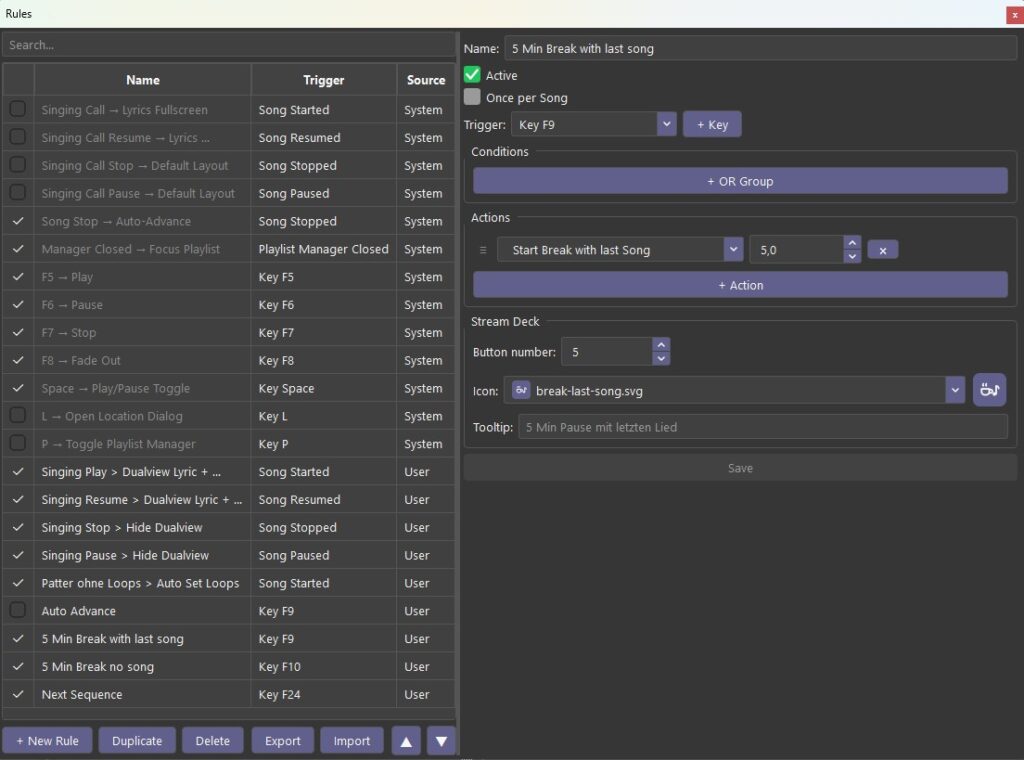
This priority also determines the order of the buttons:
- Priority 1 appears first.
- Priority 2 follows next.
- Priority 3 is in the next position.
- And so forth.
This allows you to decide which functions should be most easily accessible and where they should be displayed.
The right icon for every function
You have a wide selection of different icons available for your buttons. This collection will certainly grow even further in the future.
All icons are located in SVG format before.
SVG is a vector format. This means that the graphics can be enlarged or reduced as desired without becoming blurry or pixelated.
With classic pixel formats like JPEG or PNG, this would not be possible: If such images are enlarged too much, the individual pixels will eventually become visible.
In contrast, the SVG icons remain clean and sharp at any size. And because they are monochrome, their colors can be adapted to match the theme.
Tooltips as additional explanation
Additionally, you can assign a separate one to each button. Tooltip store.
Later, when you hover your mouse over the icon, the Caller's Caddy will show you what function it represents. This can be particularly helpful for rarely used rules or similar symbols.
The simplest approach, however, is to choose the most unambiguous icon possible. A good symbol allows you to recognize the desired function at a glance, without having to read any text.
Any size and always optimally arranged
Like all widgets in Callers Caddy, you can also use the Stream Deck. Make it any size you want to make it big or small.
The arrangement of the icons automatically adjusts to the available space. The buttons independently find the optimal position, move closer together, and make the best possible use of the available space.

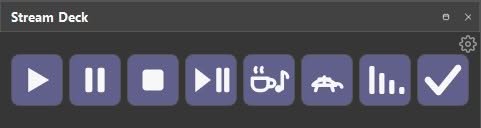
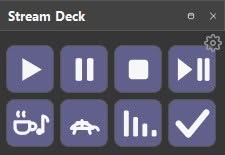
This means there are no unnecessary gaps or unused areas.
If all icons no longer fit side-by-side in one line, the remaining buttons are automatically wrapped to the next line.
This allows you to decide for yourself what your personal Stream Deck should look like:
You can create a narrow, single-row bar with your most important functions. Alternatively, you can make the widget larger and build an entire matrix of different function buttons.
Everything is possible, from individual quick access points to comprehensive function centers.
Where can the Stream Deck be placed?
You can decide for yourself, at which point on the surface Your Stream Deck will be embedded.
I personally particularly like using it on the left side next to the other controls. This area is not occupied by the lyrics.
This ensures that the buttons always remain visible – regardless of whether you are currently using the normal lyrics view or the dual view.
Your most important functions are therefore available to you at all times.
Your most important functions directly on the start screen
With Stream Deck, you can customize your main view to suit your personal workflow.
You decide:
- which rules appear as a button,
- in what order they are displayed,
- which icon represents the respective function,
- which tooltip will be displayed to explain,
- how large the widget should be,
- and where it will be placed on your surface.
The caller's caddy then ensures that the icons are optimally arranged on the available space.
This means you don't have to navigate through menus or search for a specific function while on a call. Your most important tools are waiting for you right on the home screen.
One glance, one click – and the desired function is executed.