

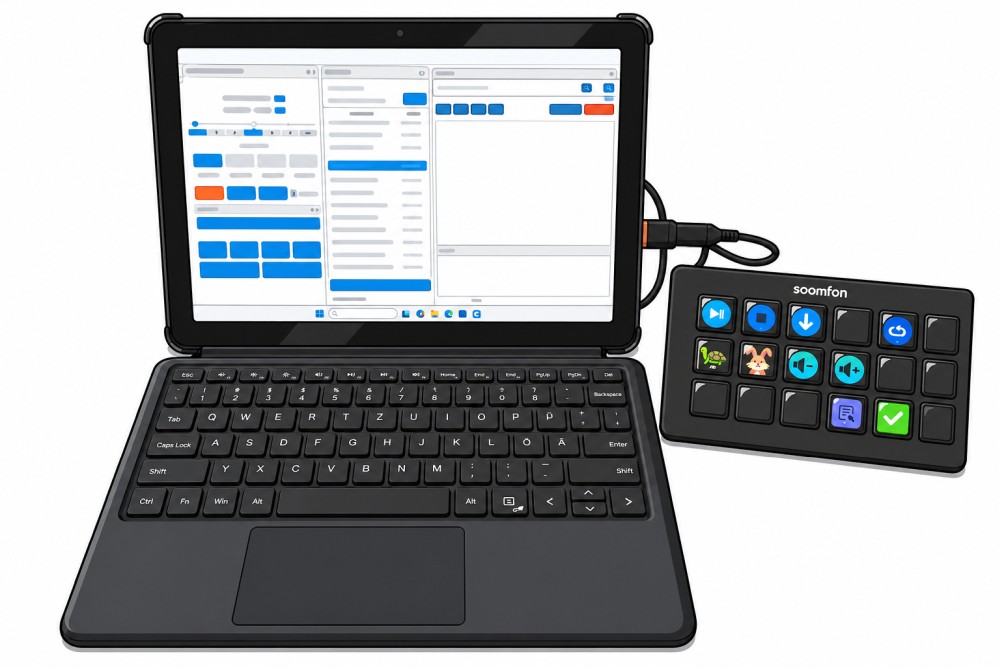
Laptops have already taken a lot of work off the hands of square dance callers. Managing music, searching for songs, adjusting the tempo, displaying lyrics, Prepare playlists – many things are much easier today than they used to be.
Nevertheless, a small problem remains in live operation: Mouse and touchpad are not always the most comfortable way to control music.
Especially when you're simultaneously calling, watching the dancers, maybe keeping an eye on the lyrics, and need to react spontaneously, every little click feels like extra thought. You don't want to be searching with the mouse cursor in that moment. You just want to click – and have it happen.
This is exactly where a Stream Deck can help.
In this article, I'll show you what a Stream Deck is, why it can be interesting for square dance callers, and how I use it. I tried it with Caller's Caddy.
What is a Stream Deck?
A stream deck originally comes from the world of streamers, gamers, and content creators. There, it is used to... to trigger certain actions with a single keystroke: Switch scenes, mute the microphone, play sounds, start programs, or execute more complex processes.
At its core, a Stream Deck is a small, freely configurable control center.
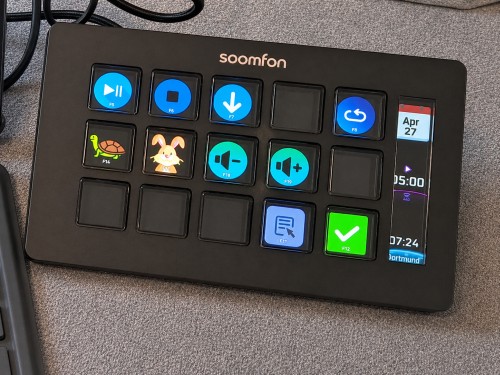
Each key can be individually configured. You decide what should happen when you press it. A particularly practical feature: the keys have small displays or pre-programmed symbols. So you don't have to remember what each key does – you can see it immediately.
For square dance callers, one function is particularly interesting: The Stream Deck can trigger keyboard shortcuts. For example, function keys like F1, F2, F3 or other shortcuts, that understands your music software.
This turns a normal key combination into a visible button.
Why keyboard control is so important in square dance music software
Many caller programs can be operated not only with the mouse, but also via keyboard shortcuts. This applies, for example, to Callers Caddy, but also to other programs such as SqView or SquareDesk, provided that corresponding shortcuts are configured or available.
The reason is simple: In live operation, keyboard movements are often faster than mouse movements.
Using a mouse, you have to find the right area, hit the button, and look at the screen at the same time. With a button, you can trigger a function much more directly.
Play. Stop. Pause. Increase tempo. Decrease tempo. Open lyrics. Prepare next song.
All of this is easier if you don't have to search with the mouse pointer first.
Especially when calling, it's not just about whether something works. It's also about how little attention it requires. Because attention spent on the software is attention missing on the dance floor.
The problem with keyboard shortcuts: You have to remember them.
Shortcuts are convenient – but they have a catch.
The more functions you control, the more you have to remember. Which key starts the song?Which one stops him? Which one slows down the pace? Which one reveals the lyrics? Which one shows the correct view?
Of course, you can get used to it. Many callers have been working with keyboard shortcuts for years and are therefore very fast.
But especially with many functions, a small memory burden quickly arises.
And that's exactly the point: A Stream Deck turns abstract keyboard shortcuts into visible buttons.
Instead of memorizing that, for example, a specific F-key triggers a specific action, you create a button with a suitable symbol.
The play button looks like play.
The stop button looks like stop.
Slower is a turtle.
Schneller gets a rabbit.
It's not complicated. That's precisely the advantage.
In live operation, you don't want to solve puzzles. You want a clear, simple user interface.
My test with Callers Caddy and a Soomfon Stream Deck
I got my Soomfon Stream Deck Set up for Caller's Caddy.
The process is basically simple:
- In I define Caller's Caddy, which action is behind which key.
- I'll configure the appropriate button on the Stream Deck.
- Then I'll add an icon so I can immediately see what the button does.
This turns a normal F-key into a clear control button.
For example, I can press the play button on the Stream Deck and the music starts. I can stop the song with the stop button. I've chosen a turtle for slower playback and a rabbit for faster.
That's immediately understandable – even without a long explanation.
The advantage isn't that it's technically spectacular. The advantage is that it's easier when calling. easier, faster and clearer will.
You no longer have just a keyboard full of identical-looking keys. You have a small control surface that perfectly suits your calling style.
Which features might be useful for callers?
Which functions you assign to a Stream Deck naturally depends on your workflow and your music software.
For callers, these features, for example, might be of interest:
- Play, Pause and Stop
- Fade Out
- Slower or faster pace
- Adjust pitch or key if the software supports it.
- Lyrics show
- Open song list or playlist
- Prepare the next song
- Check off note
- load specific layout
- Open special views, for example a larger lyrics or planning view
The important thing is: The Stream Deck does not replace your music software. It only triggers commands that your software already understands.
So if your software supports keyboard shortcuts, the Stream Deck can make these shortcuts visible and more convenient for you.
What makes Callers Caddy particularly exciting is that many actions can be freely controlled via rules and buttons. This allows the controls to be easily adapted to one's own workflow.
What types of Stream Decks are there?
The term became known primarily through the Elgato Stream Deck. Elgato is probably the market leader in this area and offers various models – from smaller devices with few buttons to larger versions with more space for functions.
There are also cheaper alternatives and Stream Deck-like devices from other manufacturers. I have a device from Soomfon I tested it and was able to use it well for this purpose.
So, for beginners, the most expensive model isn't necessarily the best choice. What's more important is:
- How many keys do you really need?
- Can the keys be freely assigned?
- Can the device trigger keyboard shortcuts?
- Can you upload your own icons or symbols?
- Is the operation fast enough for you in live operation?
For many callers, a mid-range device should be perfectly adequate. You probably don't need a huge control center, just the most important functions right in front of you.
My conclusion: Not a must-have – but a nice comfort upgrade.
A Stream Deck is not a must for square dance callers.
You can of course continue to use your music software with a mouse, touchpad, or keyboard. If that works well for you, then everything is fine.
But if you want to work faster and more relaxed while calling, such a small control center is very appealing.
This is how it feels to me: The most important functions are right in front of me. I have to search less, remember less, and fumble less.
And that's exactly what's so valuable in calling.
Ultimately, the technology shouldn't be the main focus. It should support you so that you can concentrate more on the music, choreography, and dancers.
What do you think of the idea?
Would you use a Stream Deck when calling?
Or do you prefer working with a mouse, keyboard, or a completely different setup?
Feel free to write it in the comments – I'm very interested., how other callers solve their music control. And if there is demand, I will gladly post an icon set for Stream Decks here, suitable for callers.
I stuck these symbols over the F-bar and thus achieved the same result, but without an extra device.
Yes, that's certainly possible. My small laptop doesn't have any dedicated F-keys, though; I can only access them using the FN key combination. So for me, this is much easier. Besides, there are F1-F24 keys, and only F1-F12 are visible on the keyboard. So if the F-keys aren't enough, you can use your Stream Deck to access everything in one place.