


Sometimes the song shouldn't be played through the main sound system.
Perhaps a fellow caller is sitting next to you at the computer.
You want to play him a song briefly.
Or you might want to listen to a track yourself without the whole room hearing it.
Previously, this was often cumbersome.
You had to change the audio output in Windows.
Or unplug and replug the cable.
Or hope that the right speaker is currently active.
That's exactly what a new, small but very practical feature in the Callers Caddy is for.
The audio output can now be selected directly.
You will now find a selection for the audio output in the bottom right corner of the status bar.

There, the Callers Caddy shows you all available output devices of your system.
For example:
- Your internal sound card
- A USB audio interface
- Bluetooth headphones
- HDMI audio through a monitor
- External speakers
- The normal system standard
The first entry is called System standard.
This is the behavior so far.
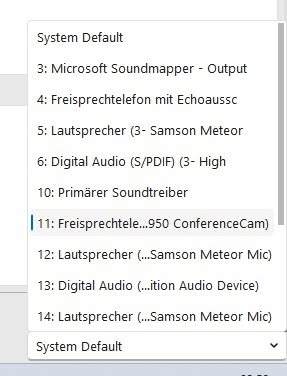
If you don't want to change anything, everything will remain as usual.
Practical in everyday caller life
Especially when preparing for an evening, the right audio output is invaluable.
For example, you can check a song while the system is still being set up for the dance night.
Or you can listen to a passage quietly through headphones, without everyone in the room noticing that you are searching, comparing, or testing.
This also helps when exchanging information with other callers.
You don't need to activate the entire system first.
You can quickly show:
„"Here comes the break."“
„"Pay attention to the opening."“
„"This version could be a good fit for the group."“
In this way, a small selection in the status bar becomes a real help in preparing, testing and making joint decisions.
Change even during playback
The output can even be changed during playback.
That means:
The song is playing.
You select a different output device.
And the audio is switched directly to the new channel.
This is especially useful during testing.
For example, you can compare whether a song sounds clean through headphones.
Or whether the system reproduces the bass well.
Or whether a particular output is even connected correctly.
Callers Caddy remembers your selection
When you select an exit, the Caller's Caddy remembers this setting.
The selection is saved in the INI file.
The Caller's Caddy automatically restores the selected output on the next start.
This saves clicks.
So if you mostly work with a particular USB sound card, you don't have to select it every time.
What happens if a device is missing?
Sometimes a device is unavailable.
Perhaps you unplugged the audio cable.
Perhaps the USB sound card is not connected.
Perhaps the Bluetooth headphones are currently switched off.
That has also been taken into account.
If the saved output is not available at start, the Callers Caddy automatically uses the System standard.
And if a current output becomes unavailable during use, the sound switches to the next available channel.
This prevents playback from simply freezing just because a device is suddenly no longer available.
Small function, big comfort
The new selectable audio output is not a huge window.
No complicated menu.
No new system to learn.
It's simply a small selection in the bottom right corner of the status bar.
But it is precisely these small features that make everyday life easier.
You can preview faster.
You can react more flexibly.
You can send music more precisely to where you need it.
For me, this is another step towards:
Caller's caddy shouldn't slow you down.
Caller's Caddy is there to support you while calling.
Try it now
The selectable output channels are now available in Callers Caddy (version 0.84).
Open the Callers Caddy, look at the status bar in the bottom right corner and select the appropriate audio output.
Feel free to test it while a song is playing.
Then you'll see exactly how quickly the switch works.