

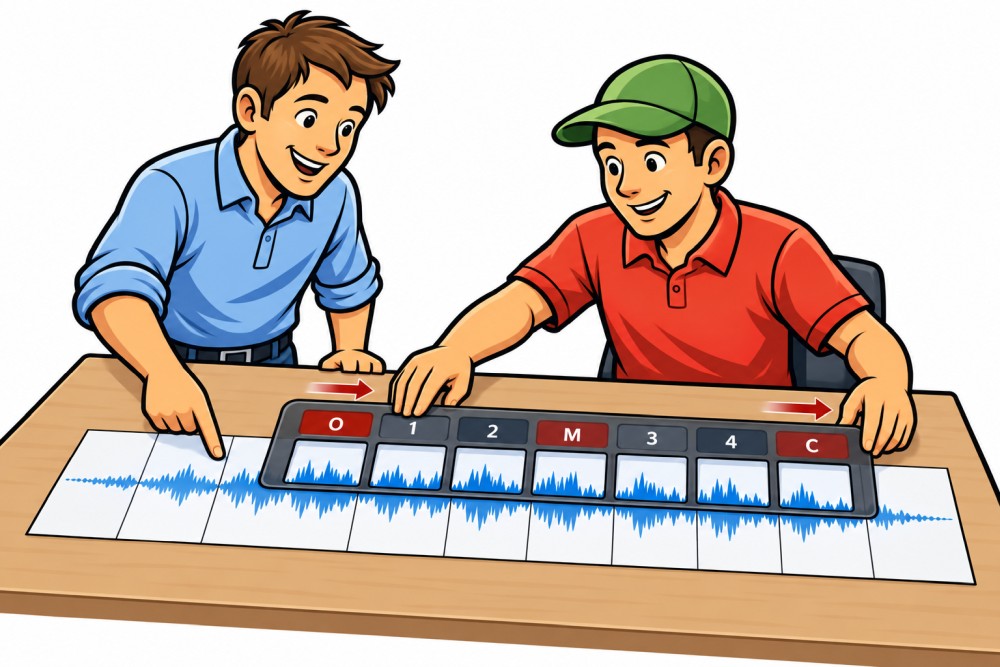
Callers Caddy can scroll the lyrics of a Singing Call in sync with the music. If you want, it can even display your own sequences.
There's more to these features than meets the eye at first glance.
First, Callers Caddy needs to know which part of the text corresponds to which point in the song. For that, we have the SyncPoints.
After that, Dynamic Lyrics can replace the dance figures from the cuesheet with your own sequences. The rest of the song lyrics remain intact. The timing also doesn't change.
Both features work closely together. That's why we'll first look at SyncPoints in this article. Then we'll build on that and dive into Dynamic Lyrics.
This time, we'll go a bit deeper into the details. You'll learn not only which buttons to press but also what Callers Caddy does in the background.
This way, you can use the features confidently and understand potential errors more easily.
Let's start with the basics: the SyncPoints.
SyncPoints: The connection between music and text
A cuesheet contains the lyrics of a Singing Call. The music file contains the corresponding song. Initially, Callers Caddy doesn't know which line of text corresponds to which point in the music.
This connection is made by the SyncPoints her.
A SyncPoint connects a specific line of text with a specific time in the song. It tells Callers Caddy, for example:
When the song reaches this point, the first figure starts in the lyrics.
This way, Callers Caddy knows which part of the lyrics corresponds to the music. This is the basis for the automatic scrolling of the text.
The seven parts of a Singing Call
A Singing Call usually consists of seven equally long parts. Each part has 64 beats:
- Opener
- Figure 1
- Figure 2
- Middle Break
- Figure 3
- Figure 4
- Closer
Together, that's 448 beats.
The four figures are therefore in parts 2, 3, 5, and 6. There, the caller uses their prepared choreography. Opener, Middle Break, and Closer usually contain the fixed text from the cuesheet.
For this fixed structure, Callers Caddy uses a template. It shows when the seven parts begin and end.

The SyncPoints connect these parts of the template with the corresponding places in the text. This allows the text to scroll in time with the music.
Dynamic Lyrics also needs this connection. Callers Caddy must know exactly when a figure starts and when it ends. Only then can it replace the original calls with your own sequence.
In short:
SyncPoints connect music and lyrics. They form the basis for auto-scroll and Dynamic Lyrics.
This is how SyncPoints are created
Callers Caddy first needs the temporal framework of the Singing Call. For this, the program uses the fixed template.
This template consists of seven parts, each with 64 beats. Its total length is 448 beats.
With an accurately detected BPM, the starting point is sufficient
Callers Caddy first tries to automatically determine the BPM of the song. BPM means Beats per minute.
If this value is accurate enough, Callers Caddy just needs to know when the first part begins. After that, the program can calculate when each of the seven parts begins and ends based on the BPM.
The length of the template is already fixed:
7 parts × 64 beats = 448 beats
From the starting point and the BPM, all other time points can be derived.
Set the start and end yourself
Not every music file allows for an accurate BPM detection. In this case, you can set the start and end yourself.
Callers Caddy will then adjust the template to this range. The seven parts will remain the same length.
Automatically detect
You can also „Automatically detect“ Callers Caddy will then analyze the music file. It will try to determine the BPM and the starting point.
You should quickly check the found values. Music files can be structured differently. Some, for example, contain a longer pause or additional music at the beginning.
Find the appropriate text passages
Now Callers Caddy knows the positions of the seven parts in the music. In the next step, it looks for the matching spots in the cuesheet.
For this, Callers Caddy pays attention to headings like:
OPENERFIGUREMIDDLE BREAKCLOSERTAG
I have examined many different cuesheets for this. In the process, numerous spellings and variations have already come together.
Nevertheless, there may be headings that I haven't encountered yet. Therefore, the list of keywords can be expanded. This way, Callers Caddy can also recognize and correctly assign other spellings.
In this way, Callers Caddy connects the seven parts of the template with the appropriate text blocks.
For each part, a SyncPoint can be set at the beginning and at the end. This results in up to 14 SyncPoints.
This establishes both sides: the point in the music and the corresponding spot in the text.
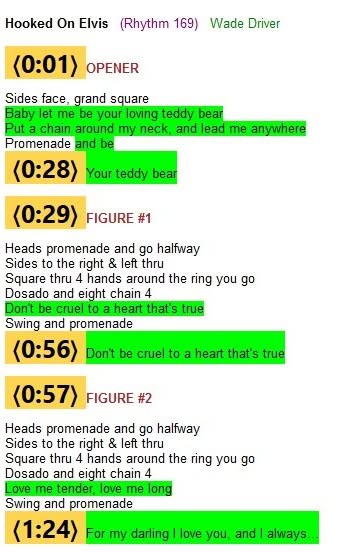
Not every cuesheet looks the same
Cuesheets come from many different labels and authors. Therefore, their headings are not always structured the same way.
Callers Caddy takes many of these differences into account.
Combined headings
Sometimes the same text is used in several places in the song. Then the cuesheet might say, for example:
OPENER – MIDDLE BREAK – CLOSER
Callers Caddy recognizes that this text belongs to three parts of the template. The text is assigned to the Opener, the Middle Break, and the Closer.
Multiple figures under a heading
Figures are sometimes grouped together as well. Typical examples are:
FIGURE 1, 4FIGURE 2, 3
Callers Caddy assigns the common text to the appropriate figures in the template.
Additional notes
Sometimes there is more information behind a heading:
FIGURE Plus, corner progression
Callers Caddy separates this note from the actual heading. The word „Plus“ does not prevent the recognition of FIGURE.
TAG is not always a heading
The single line TAG can introduce an additional section at the end of the song.
However, the word also appears in dance calls. Examples include Tag the Line and 1/2 Tag.
Callers Caddy distinguishes these cases. Only the single line TAG is recognized as a heading.
Common typos are also taken into account
Even published cuesheets contain typos. That's why Callers Caddy recognizes, for example:
MIDLE BREAK
So a small typo doesn't have to prevent the entire assignment.
Check and correct the result
The automatic recognition takes a lot of work off your hands. Still, you should briefly check the result.
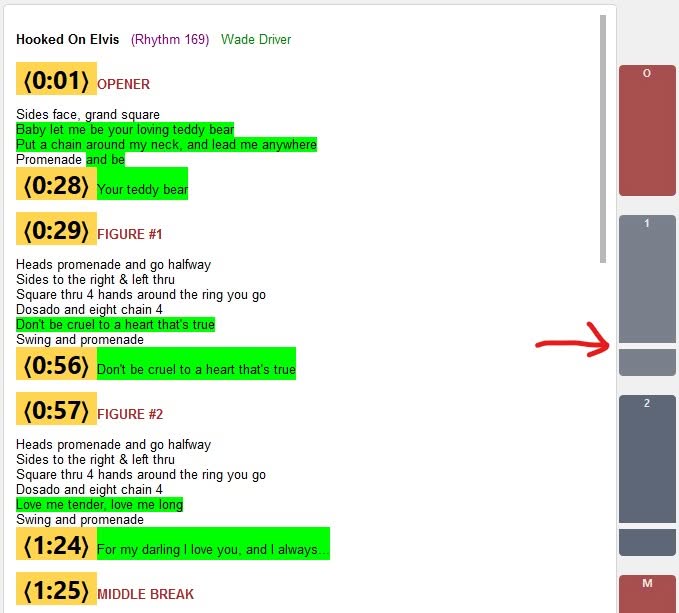
For this, switch to sync mode in the lyric window. There, colored stripes on the right edge show which lines of text belong to the individual parts of the template.
Adjust the text areas
Sometimes a recognized text block starts a line too early or too late. Then you can move the boundary of the colored stripe with the mouse.
The boundary snaps to the text lines. This way, you can precisely determine which lines belong to a part of the template.
The change will be saved permanently for this song.
Move all SyncPoints together
Sometimes the text areas are recognized correctly. However, the entire text appears a bit too early or too late.
In this case, you can move all SyncPoints together:
- one second forward
- one second backward
The endpoint will also be moved. The length of the template remains unchanged.
The song start follows the first SyncPoint
The song start is connected to the earliest SyncPoint. If you move all SyncPoints, the song start will also be adjusted.
This way, music, template, and text remain connected.
Set SyncPoints for many songs
You don't have to calculate the SyncPoints for each song individually.
Callers Caddy can process many songs in a single run. This is especially helpful if you already have a large music collection with lyrics.
Callers Caddy supports various file formats:
- HTML
- RTF
- DOCX
- TXT
I recommend HTML as the best and most flexible format. Other music software manufacturers for callers also prefer HTML. This format has established itself in our field for good reason.
HTML lyrics are easy to display, edit, and customize. Changes are significantly more difficult with other formats. Depending on the format, they may not even be possible in Callers Caddy. This is especially true for PDF files.
Callers Caddy analyzes the existing lyrics. The program tries to recognize the appropriate text areas. Then, the SyncPoints for all suitable songs are calculated.
The lyric files themselves remain unchanged. Callers Caddy stores the found SyncPoints and your later corrections in its own database.
For a song, you should briefly check the result before the first use. This is especially important if the cuesheet is unusually structured.
What SyncPoints need to be present
Callers Caddy first needs the lyrics of the song. Without text, there are no lines that can be connected to the music.
Additionally, the BPM must be accurate enough. Then the starting point of the Singing Call is sufficient. Callers Caddy can calculate the template with its seven parts from there.
If the BPM is not accurate enough, you need to set the end yourself as well.
Once these basics are in place, Callers Caddy can calculate the SyncPoints. They connect the parts of the template with the appropriate lines in the lyrics.
Dynamic Lyrics: Your choreography in the lyric window
The SyncPoints connect the text with the music. This provides the temporal framework.
On this basis, Callers Caddy can go one step further.
With Dynamic Lyrics Callers Caddy replaces the dance calls in the four figures. Instead of the choreography from the cuesheet, you see your own sequences from the sequence view.
You activate the feature via the button „Dynamic Lyrics“ in the lyric window. It is located right next to „Auto-Scroll“.
The lyric file is not changed. Callers Caddy only swaps the text you see in the lyric window.
If you turn off Dynamic Lyrics, the original text from the cuesheet appears immediately.
This makes the feature safe and flexible. You can use your own choreography without having to create a copy of the lyrics or edit the file beforehand.
Why Dynamic Lyrics needs the SyncPoints
Dynamic Lyrics changes the displayed text. However, the timing of the song remains the same.
The SyncPoints still dictate when the individual parts of the template start and end. Auto-Scroll continues to follow the music with your own choreography.
This is important. Your sequence can have more or fewer lines of text than the original figure in the cuesheet. Nevertheless, the same time window of 64 beats is available for it.
Callers Caddy adjusts the display to this area. This way, the current choreography remains clearly visible throughout the entire figure.
At the end of the figure, Auto-Scroll reaches the next part of the template. There, the next matching sequence is displayed.
In short:
The SyncPoints determine when a figure runs. Dynamic Lyrics determines which choreography you see during that time.
Two ways to distribute your sequences
When you first turn on Dynamic Lyrics, Callers Caddy asks how your sequences should be distributed across the four figures.
There are two options for this.
One sequence for all four figures
In this mode, Callers Caddy uses the same sequence in all four figures.
This is handy if you want to have the same break danced multiple times. You select the desired sequence in the Sequence View. Callers Caddy then displays it in each figure.
The next sequence for each figure
In this mode, Callers Caddy starts with the currently selected sequence. For each subsequent figure, the program switches to the next sequence in the Sequence View.
An example:
- Figure 1 shows Sequence 1.
- Figure 2 shows Sequence 2.
- Figure 3 shows Sequence 3.
- Figure 4 shows Sequence 4.
After the fourth figure, the last sequence remains selected.
This also works if multiple figures are listed under a common heading in the Cuesheet. The SyncPoints still know the time boundaries of the four figures.
That's why Callers Caddy can switch at each boundary to the next sequence.
The singing at the end of a figure remains intact
A figure often consists not only of dance calls.
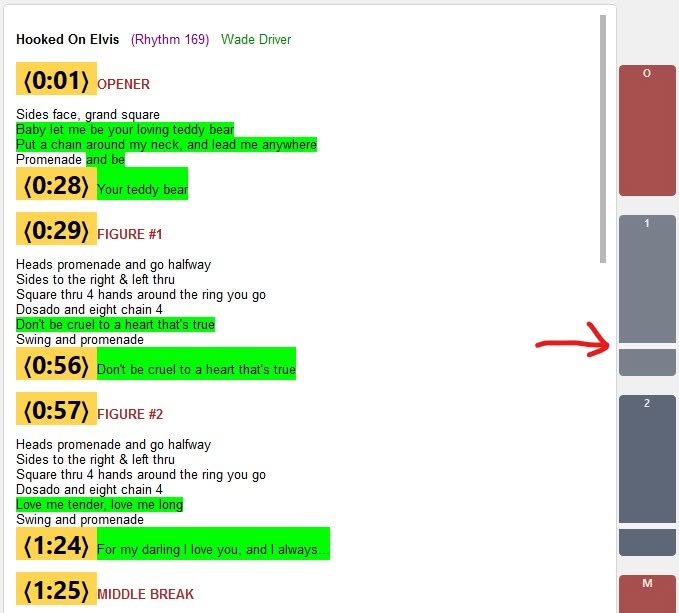
After the last instruction, there are often one or two lines of pure singing. Meanwhile, the dancers promenade home. These lines belong to the song and should not be replaced by choreography.
Dynamic Lyrics therefore distinguishes between two areas:
- the choreography
- the subsequent lyrics
Callers Caddy looks for the last line in each figure that leads the dancers home with a promenade. Up to this point, Dynamic Lyrics can replace the original calls. The lyrics after that remain visible.
The automatic detection finds the correct separation point at about 96 percent of the analyzed figures.
Correct the separation point itself
No cuesheet is exactly like another. That's why you can adjust the detected separation point yourself.
In sync mode, you'll see a movable cut mark in the colored section strip. It shows where the choreography ends and the pure singing begins.
If the mark is in the wrong place, you can drag it with the mouse to the correct line of text. Callers Caddy saves this correction permanently for the song.
Dynamic Lyrics then uses exactly this point as the boundary for the exchange.
The Sequence View remains the control center
Dynamic Lyrics displays your choreography in the lyric window. However, the sequences are still selected and managed in the Sequence View.
The Sequence View always dictates which sequence is currently active. The lyric window only takes over this selection for display purposes.
When you scroll forward or backward in the Sequence View, the displayed choreography in the lyric window changes immediately.
This way, there is always only one place where the active sequence is set. This prevents different displays in both windows.
This clear control also creates the foundation for further possibilities. Later, for example, scrolling can be controlled via a remote. The lyric window then automatically follows the selection.
Dynamic Lyrics remains active across song changes
You don't have to turn Dynamic Lyrics on again for each song.
If the function is active, it stays on for the next song as well. Callers Caddy then automatically checks if this song meets the necessary requirements.
If, for example, lyrics, sync points, or recognized figures are missing, Dynamic Lyrics pauses quietly. You don't have to turn off the function.
As soon as you load a suitable song again, Dynamic Lyrics will be activated automatically.
Callers Caddy also remembers:
- whether Dynamic Lyrics is turned on or off
- which of the two distribution modes you have chosen
You can also enable or disable the feature in the settings under „Lyrics“ .
This way, you can use Dynamic Lyrics permanently without having to set it up again for each song.
What Dynamic Lyrics changes – and what it doesn't
Dynamic Lyrics only replaces the choreography in the four figures.
These parts remain in the original:
- Opener
- Middle Break
- Closer
- the lyrics at the end of the figures
The inserted sequences adapt to the display of the lyrics. They take on the font, font size, and text color of their surroundings.
However, a colored background highlight from the lyric file is not adopted. This prevents Callers Caddy from showing old highlights from the cuesheet behind your new choreography.
The lyric file itself also remains unchanged. Dynamic Lyrics only ever changes the current display in the lyric window.
As soon as you turn off the feature, you will see the complete original text again.
Why is „Dynamic Lyrics“ grayed out?
Callers Caddy only activates the button when Dynamic Lyrics can be used.
The following conditions must be met:
- The loaded song is a Singing Call.
- Lyrics are available.
- SyncPoints have been set.
- The four figures have been recognized in the text.
- At least one sequence is selected in the sequence view.
- The sync mode and the editing mode are turned off.
If any of these conditions are missing, the button remains grayed out.
You don't have to guess what's missing. Hover over the button. A hint will show you the exact reason.
This way, you can quickly see which step you still need to complete.
Music, text, and choreography work together
SyncPoints and Dynamic Lyrics serve two different purposes. Still, they are closely related.
The SyncPoints connect the lyrics with the music. They tell Callers Caddy when the seven parts of the template start and end.
Dynamic Lyrics uses this knowledge. In the four figures, the function displays your own sequences. Opener, Middle Break, Closer, and the singing at the end of the figures remain intact.
The original lyric file is not changed. Callers Caddy only adjusts the display in the lyric window.
This way, you no longer have to switch between lyrics and choreography. You see both at the right time in the same place.
Especially with a Singing Call, this can noticeably relieve your mind. You can focus more on the music, the dancers, and your calling.