


Do you want to update Callers Caddy?
Good idea. Because with an update you get new features, improvements, and bug fixes. Sometimes they're big new tools. Sometimes they're small fixes that make everyday life easier.
The only important thing is: Download the correct file.
Because there is a difference between the full version and an update file.
1. Why install an update at all?
An update is always worthwhile if you are already using Callers Caddy and a new version is available.
For example, because:
- a new function was added
- A troublesome error was fixed.
- Callers Caddy runs more stably
- one area was improved
- the operation has become easier
In short:
You are installing an update, so that your caller's caddy will be better.
2. First-time installation or update? That's the important difference.
On the download page, you will find the link at the very top. full version.
This version is for the First Installation thought.
That means:
- The database is still empty
- No original songs have been entered yet.
- The INI file contains only the basic values.
- Personal settings are not yet available.
You should only use this full version when you install Callers Caddy for the first time.
If you already use Callers Caddy on your computer, you normally need not this complete version.
Then you need one Update file.
5. Where can I find the update files?
First, go to the download page:
At the very bottom of the page you will find the Download area.
There you will find the versions of Caller's Caddy released so far.

The folders are sorted by version.
Select the folder containing the latest version.
In this folder you will find the appropriate Update file.
5. Which file should I download?
Download from the folder of the latest version Update file down.
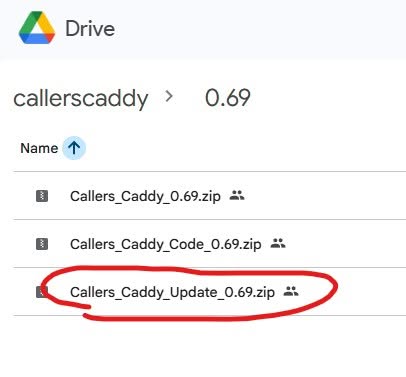
Not the full version.
Not just any old version.
But the update file from the latest version folder.
This file is specifically designed to update an existing Callers Caddy installation.
2. How do I install the update?
After downloading, you extract the update file.
Then you copy the extracted contents into your existing Callers Caddy Directory on your computer.
This is the folder in the Callers Caddy is already installed.
Only the files that are allowed to be replaced will be replaced.
For example:
- Program files
- new modules
- updated files
- technical improvements
4 Will my own data be retained?
Yes.
The update file only contains files that may be overwritten.
Your own customized files will be preserved.
These include, for example:
- your database with the song information
- your played songs
- your locations
- your personal settings
- your INI file
The update is designed so that your own data will not be overwritten.
You will receive the new version, but your personal Callers Caddy environment will remain unchanged.
5. What happens after the update?
After unpacking, you can Callers Caddy restart.
The new version is now running.
You can now use the new features or benefit from the bug fixes.
If technical adjustments are needed in the background, Callers Caddy usually takes care of them himself.
⑧ Summary: Caller's Caddy Update in 5 Steps
- Open the download page: https://callerscaddy.de/download/
- Scroll all the way down to the download section.
- Open the folder containing the latest version.
- Download the update file.
- Extract the contents into your existing Callers Caddy directory.
Complete.
Conclusion: An update is not a new installation
An update is intended to improve Callers Caddy without destroying your work.
Therefore, for an existing installation, you use the Update file.
The full version is intended for initial installation only.
This is how you get new features, Bug fixes and improvements, while your songs, settings and personal data are retained.
⑨ Extra tip: Backing up before updating saves a lot of hassle.
An update is designed to preserve your own data.
Nevertheless, a backup is always a good idea.
Because a backup gives you peace of mind in case something goes wrong. For example, due to an incorrect folder, a user error, or a problem during unpacking.
It is particularly useful to back up:
- your entire Callers Caddy Program Directory
- your folder with the MP3 files, if you save your music outside of the Caller's Caddy folder
If you already use a backup system, you can simply create a fresh backup before each update.
This usually only takes a short time.
But it can save you a lot of stress in an emergency.
Pro tip: Don't just save your backup on your call laptop.
Because if the laptop breaks down, gets lost, or the hard drive has problems, a backup on the same device won't help you much.
It's better to have an additional backup on:
- an external hard drive
- a USB stick
- another computer
- a secure cloud storage
If you store the backup externally and keep it safe, you're on the completely safe side.
Then the following applies:
Install update. Callers Caddy start. Enjoy new features. And in the background, you know: If necessary, I have my backup.