

Rules now take over even more work.
After my vacation, new features will be added to Callers Caddy. This time, the focus is on rules. You can now select the appropriate sequence type, load a song, and start them manually via the Virtual Stream Deck.
This allows you to prepare routines that occur repeatedly in a caller's daily work. Instead of making several individual settings before each tip, a single rule – or the push of a button on the Virtual Stream Deck – is sufficient.
Suitable sequences for pattern and singing calls
When switching between pattern and singing call, I usually need different types of sequences. For a pattern, I'm interested in modules and get-outs, for example. With a singing call, on the other hand, I want to see the corresponding singing call figures directly.
The new "Set Sequence Type" action allows a rule to automatically switch the type filter in the sequence window.
To do this, open the desired rule and add the "Set Sequence Type" action to the "Sequence View" group. Then select the sequence type that should be displayed when the rule is triggered. The selection only includes types that actually exist in your database.
You can, for example, incorporate this action into a rule that runs when a pattern starts. This rule sets the filter to "Modules" or "Get-outs." Another rule selects the singing call figures when a singing call occurs. The sequence window then automatically displays the material you're likely to need at that moment.
If a sequence type is subsequently deleted or renamed, Callers Caddy does not change the current filter. Instead, a brief notification appears in the status bar. This prevents an old rule from unintentionally setting an incorrect view.
Select the next song at the touch of a button
The new "Load Song" feature is especially designed for callers who don't want to plan their entire evening in advance. Instead of putting all the pattern and singing calls into a playlist beforehand, you can have the next song selected spontaneously with the push of a button.
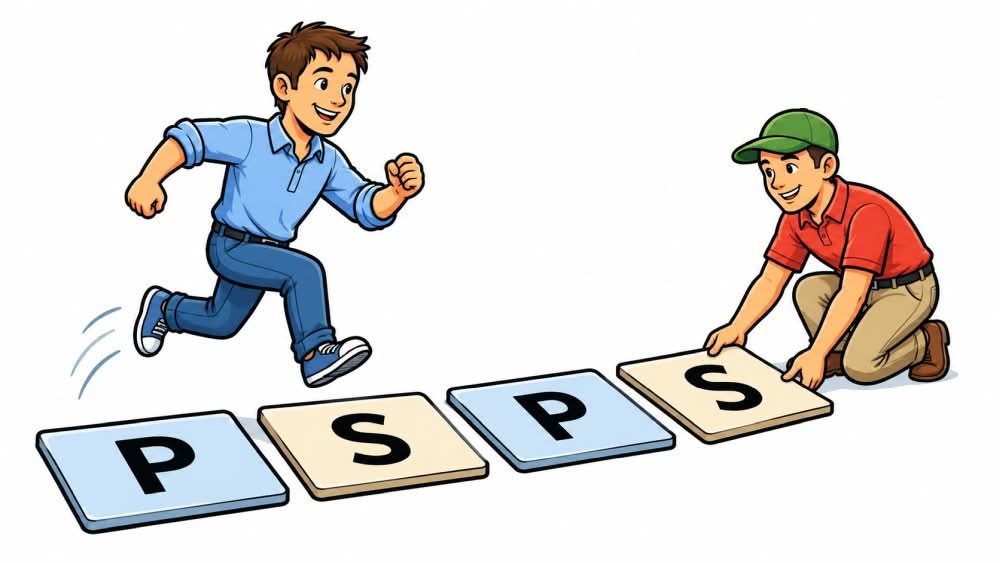
To do this, you would set up two buttons in the Virtual Stream Deck, for example: a "P" button for pattern and an "S" button for singing calls. Each button has its own rule with the corresponding "Load Song" action.
In the Patter Rule, you set the song type to "Patter". In the Singing Rule, you select "Singing". "Balanced Roulette", i.e., weighted randomness, is particularly suitable as a sorting method.
With weighted random selection, Callers Caddy chooses from all suitable songs. However, the score of each song is taken into account. Higher-rated songs are more likely to be selected, without always loading only the song with the highest score. This keeps the selection varied, while good songs that are appropriate for the situation are played more frequently.
Pressing the P button loads a ready-to-play pattern into the player in Callers Caddy. The S button selects a singing call. The song won't start automatically, so you can quickly check the suggestion and decide when to play it. If the song isn't right for you, simply press the button again for a new selection.
In addition to Balanced Roulette, other song list sorting options are also available: Recommendation, Random, Quality, Recently Played, Alphabetical, and Added. "Recommendation" always loads the song with the current highest rating. However, for spontaneously planning an evening, Balanced Roulette usually offers a better mix of quality and variety.
When a singing call is loaded automatically, no dialog box for transferring sync points appears. This dialog box is reserved for manual song selection. As a result, a rule cannot wait for input while the dialog box might be hidden behind another window. This ensures reliable loading, especially during live performance.
Custom buttons without an artificial trigger
To enable the two song buttons, there's a new trigger called "Virtual Stream Deck (manual only)". It's located at the top of the trigger selection.
A rule with this trigger does not automatically react to a song change, transport status, or any other event. It is only triggered via the Virtual Stream Deck or another manual call.
For the Patter button, you create a rule with the trigger "Virtual Stream Deck (manual only)" and the action "Load Song". Select Patter as the song type and Balanced Roulette as the sorting. For the Singing button, you create a second rule with the same settings, but select Singing as the song type.
The rules can contain additional actions. For example, the P button can simultaneously set the sequence filter to modules or get-outs. The S button loads a singing call and directly displays the singing call figures. Thus, a single button press prepares both the music and the corresponding sequence view.
Rules without their own icon are also easier to identify on the Virtual Stream Deck. The button still displays the first letter of the rule name. This letter now fills the tile like an icon and resizes as you resize the deck. This ensures that the label remains clearly visible, especially for simple P and S buttons.
For nerds
„"Load Song" does not use a simplified or separate selection. The action uses the same rating and sorting as the visible song list.
In Balanced Roulette, the selection is recalculated with each spin. Any suitable song can be chosen, but its probability depends on its score. A song with a high rating therefore has a better chance than a lower-rated track. Nevertheless, the result remains random.
„Set Sequence Type“, in turn, uses the types from the current database instead of offering a permanently built-in list.
The new actions combine several existing functions of the caller Caddy. Those who like to plan their evening in advance can integrate them into automated routines. Those who prefer to decide spontaneously can add Patter and Singing Call as separate buttons to the Virtual Stream Deck.